Here is a complete example on how to create a custom firmware compatible with the Vision External Module and an STM32 controller. This chapter assumes that you have already created a custom hardware using the custom hardware chapter:
https://server.kk-t.eu/ExternalVision/ExampleCustomHardware
- Download the STM32 Cube MX or use STM32Cube IDE https://www.st.com/en/development-tools/stm32cubemx.html
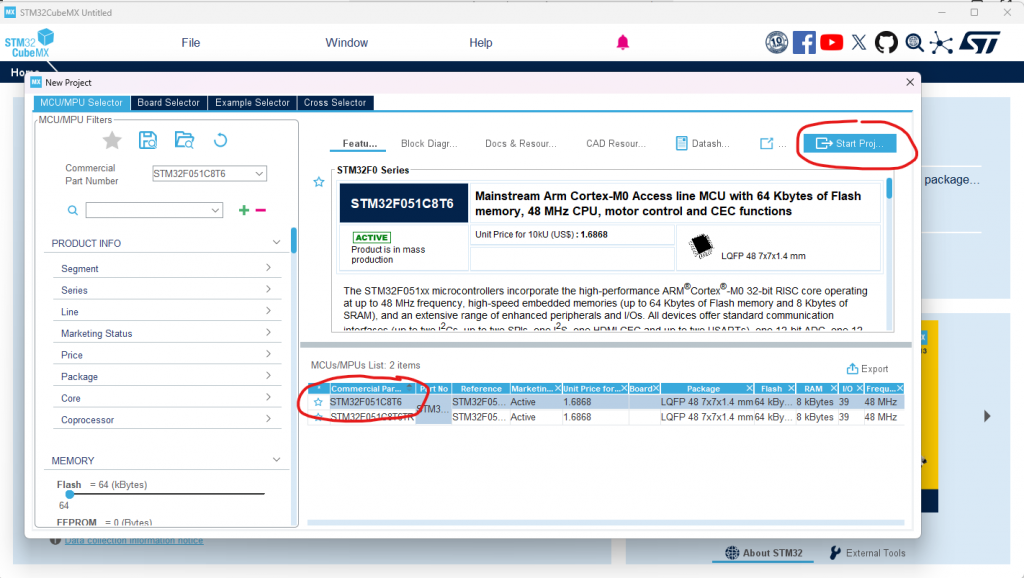
- Open and create a new project using your selected IC. The example is made using an STM32F051
- We will create 2 same Projects. One for the Bootloader and one for the Application. Name them respectively.
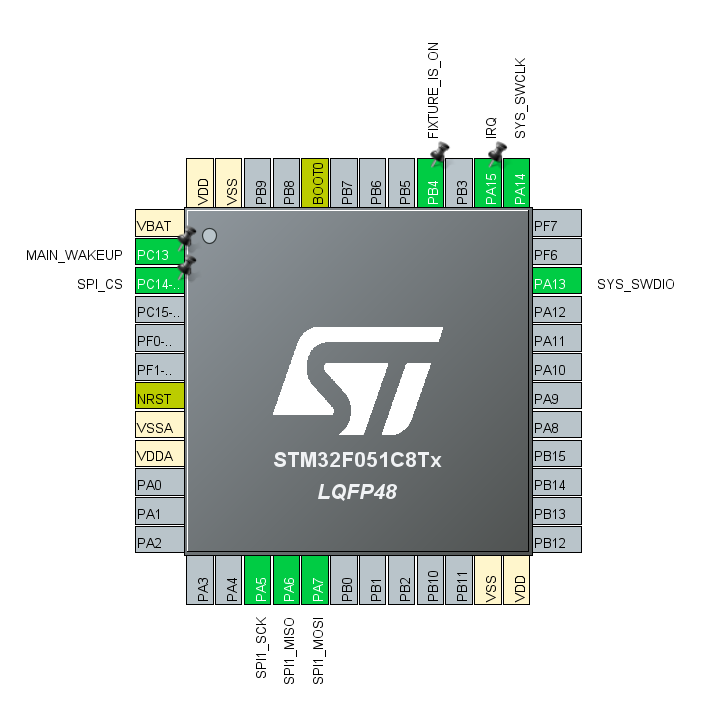
3. Next connect the interface to the Vision Controller as in your schematics. The following pins should be connected:
- „IRQ“ as GPIO ExtInt using Interupt with both edges
- „Fixture_Is_On“ as GPIO Output
- „Main_Wake_Up“ as GPIO Input
- „SPI_CS“ as GPIO Output
- „SPI_MISO“ as SPI MISO
- „SPI_MOSI“ as SPI MOSI
This can look like this. Therfore i have labeled some gpio Pins with the correct names already.
You can of course now do your necessary clock configuration and more. We will skip that here because it has nothing todo with the explanations.
Next we configure the used peripherals:
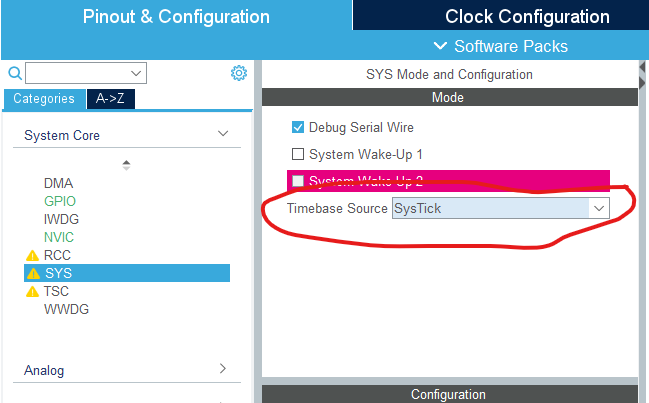
Starting in the System Core Settings make sure you use the SysTick Event. It should already be enabled:
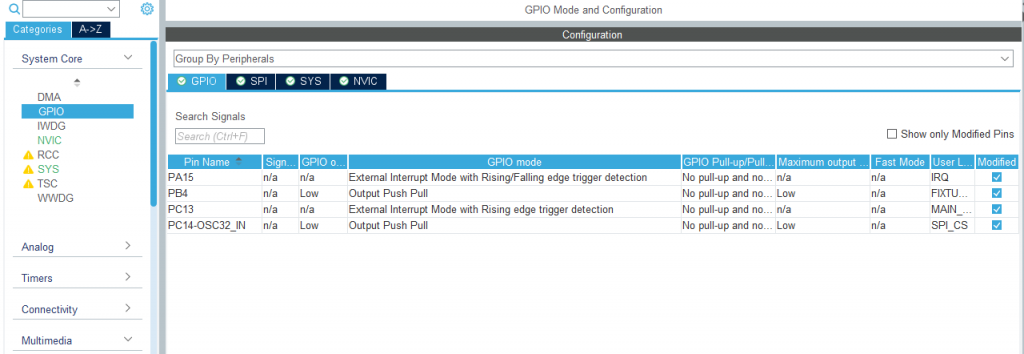
Next we head to GPIO Section to configure the IRQ Pin and the other GPIOs correctly. Make sure the IRQ uses External Interupt Mode with Rising/ Falling edge trigger detection. The MainWakeUp you can configure depending on your needs. This pin is used if the main Ic supports a sleep mode and can then be woken up through the vision module. Normally you don’t need at when getting familiar with the platform.
Next we enable the necessary interupt by pressing on NVIC and enable it:
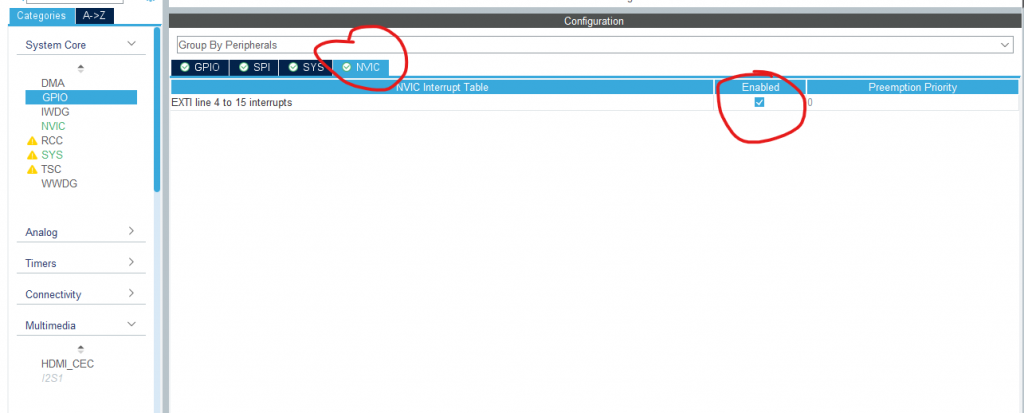
As stated in the Vision SPI library it is really important that this IRQ has a really high priority. So we let it on Priority 0!
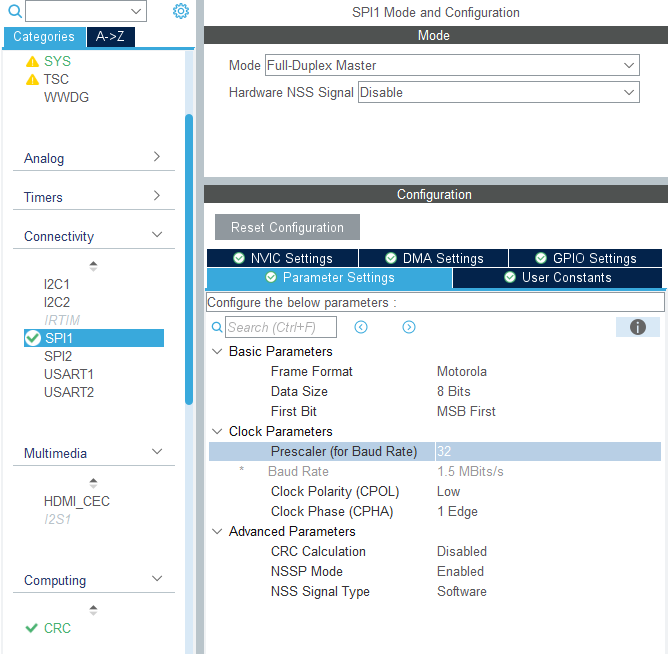
Next we have to configure the SPI. Configure it as follows:
- Full Duplex Master
- Clock Frequency should be not to high. Also it is not needed. As stated in the library documentation we choose a moderate clock frequency.
- Frame Format Motorola
- Data Size 8 Bits MSB First
- CPOL Low
- CPHA 1 Edge
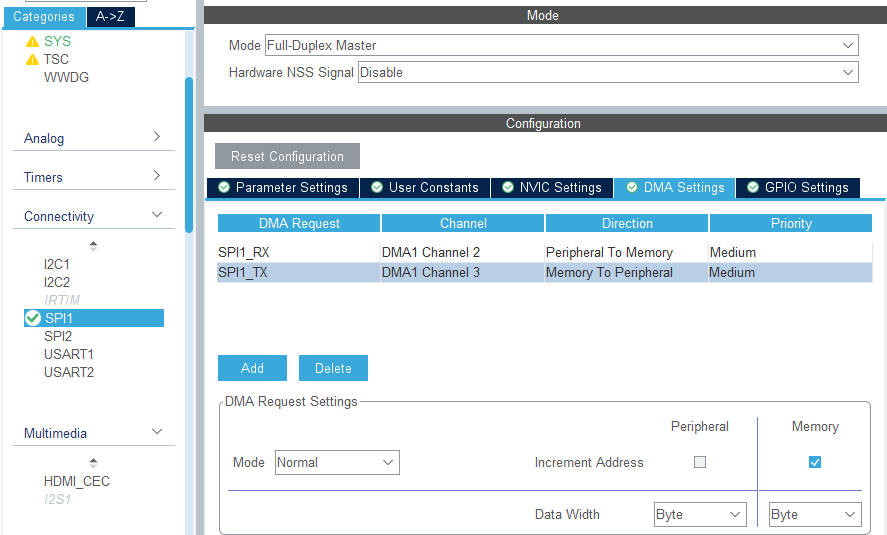
If your IC has the possibility to use the DMA then we use them in order to save CPU resources:
Next we will enable the SPI and DMA interupts. We will put the Priority to 1 in order to not disturb the Interupt from the IRQ Pin.
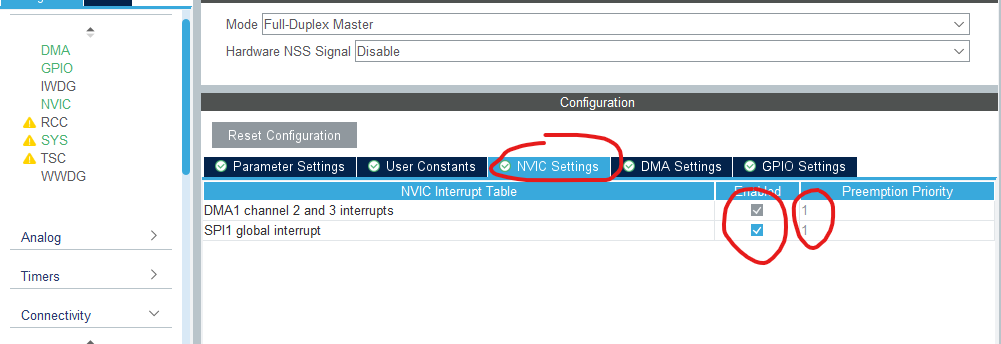
For setting the Priority you have to go to System CORE – NVIC.
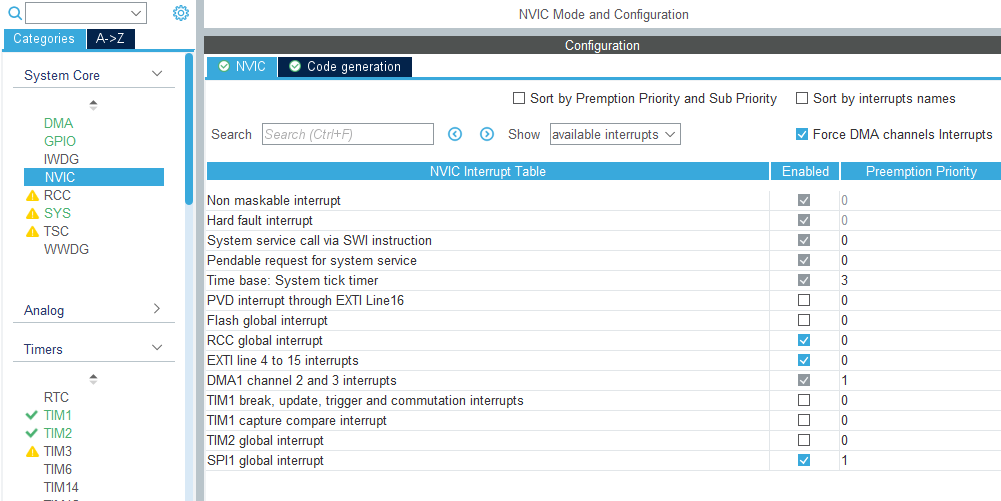
Make sure the IRQ Pin (EXTI LINE) is the highest Priority (lowest value) in your NVIC Interupt table.
That is all needed for now. We will head to the Project Manager Tab. Also due to the library is consuming a lot dynamic memory please set the Minimum heap size at least to 0x400. Also set the correct Toolchain/IDE. In this case we use the KEIL MDK Arm V5.
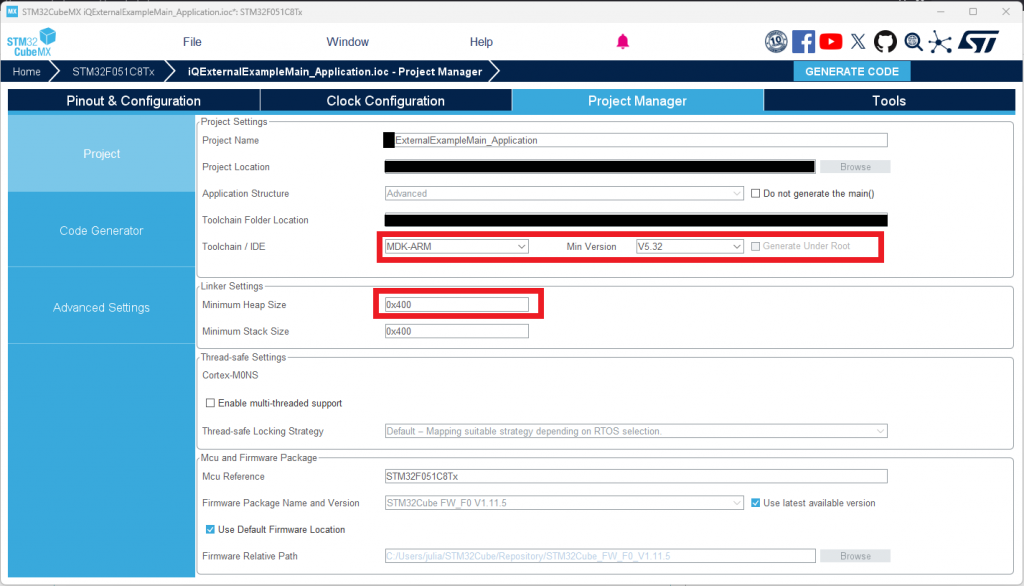
Let’s generate the project for the used IDE. Just press Generate Code.
We generate a Project for the Application and one Project for the Bootloader.
Both will be using the same modifications we do now. Starting with the main.c where we will implement all the hardware functions.
First we will define the RX Buffer for the SPI. The buffer should be 520 Bytes. We align it 16 bit depending on the implementation and to be on the safe side.

Now we are ready to integrate the library. Download the Example from this page:
https://server.kk-t.eu/ExternalVision/ExampleSoftware
After downloading the example zip folder we have to extract the files. Best use WinRar to extract it.
It would be helpful to read the Documentation for the Vision SPI Library and the Vision RDM Library:
https://server.kk-t.eu/ExternalVision/SPIInterfaceVision
https://server.kk-t.eu/ExternalVision/RDMLibrary
Do not be confused with the naming scheme iQMesh. It is used in the libraries and means the same as Vision.
Then we copy the Bootloader and Application folder into our Project structure. Also we copy the Vision SPI Library (SPI_V3) and the Vision RDM Library (RDM) and the managedFlash library into our project.
Bootloader Project
First we will start making the bootloader project, therefore we open the Bootloader Project we have generated for the KEIL IDE:
Then we will add the source files for the spi library and the dfu. Only these are needed for the Bootloader project. Like this:
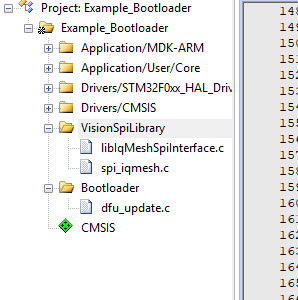
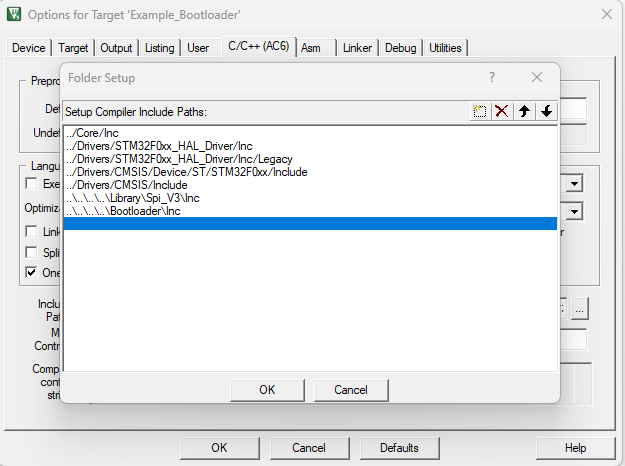
Make sure to include the necessary header files
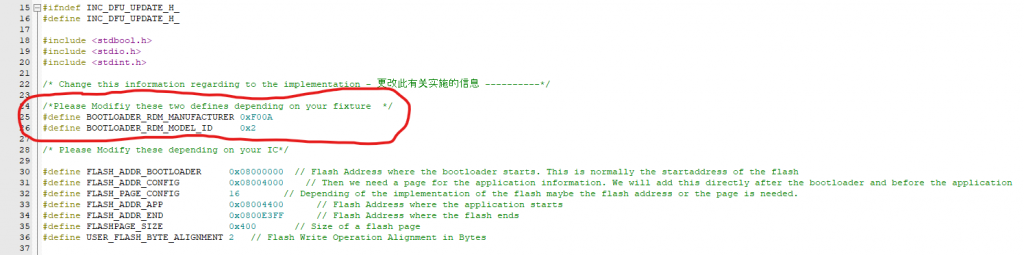
Next we will modify the dfu_update.h header file to adjust it to our custom project.
Please modify this two defines according to the rdm definition of your product. If you have no rdm definition please get in touch with us.
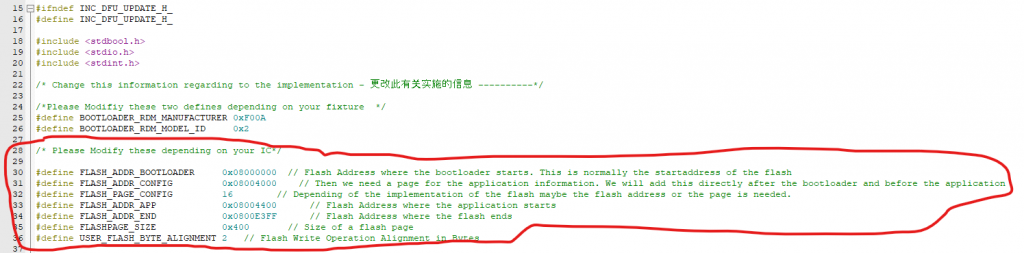
Please modify the flash defines according to your flash layout. For this project it looks like this:
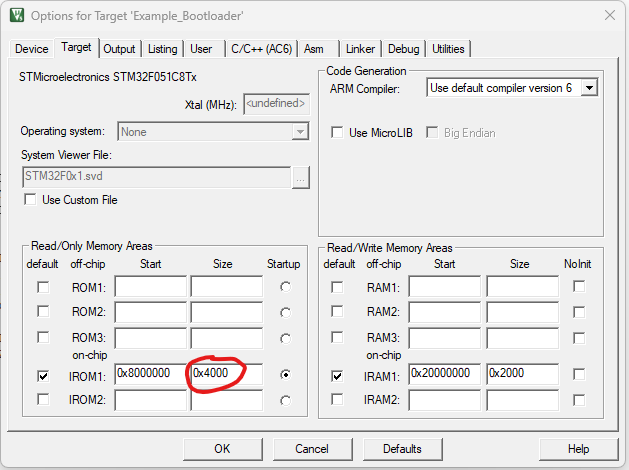
In order to make sure that the boot-loader does not get too big for the reserved flash size we will limit the flash size the boot-loader can use:
Next we have to call the necessary functions from the dfu update file in the main.c
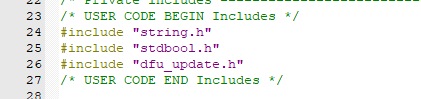
Therefore we include the header file in the main.c:
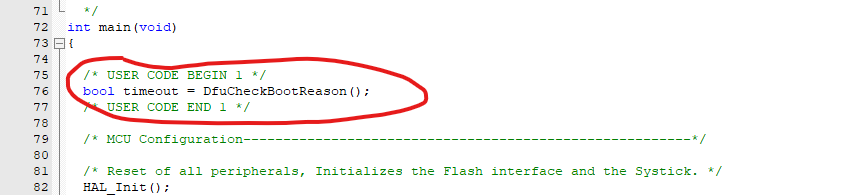
Add the „DfuCheckBootReason“ before any initialization is done:
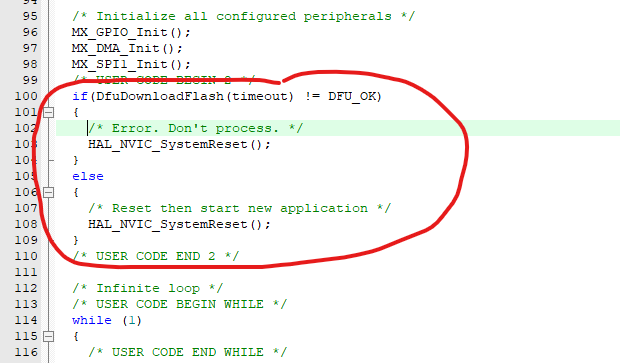
Call the function „DfuDownloadFlash“ after the initialization is done:
At last step we have to link the extern hardware functions of the dfu_update.h file by implementing them.

Therefore we have to define the necessary functions. Best in the main.c. These functions are hardware dependent.
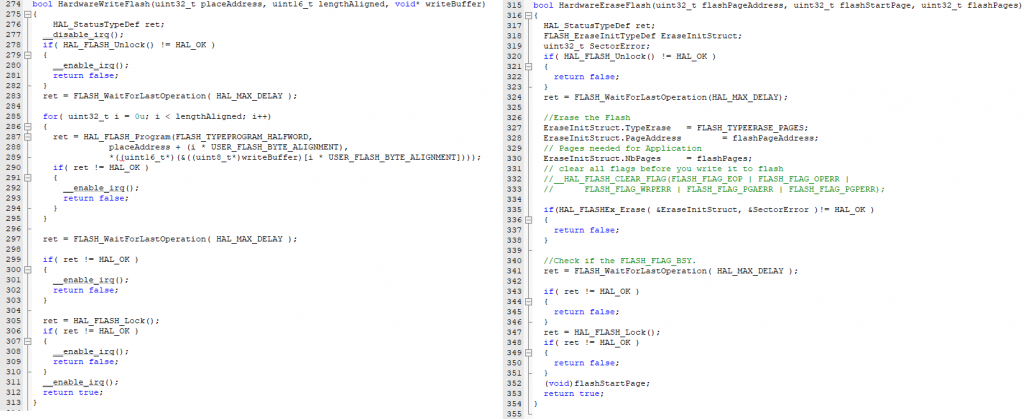
First we start with adding the „HardwareEraseFlash“ and „HardwareWriteFlash“ functions. They could look like this:
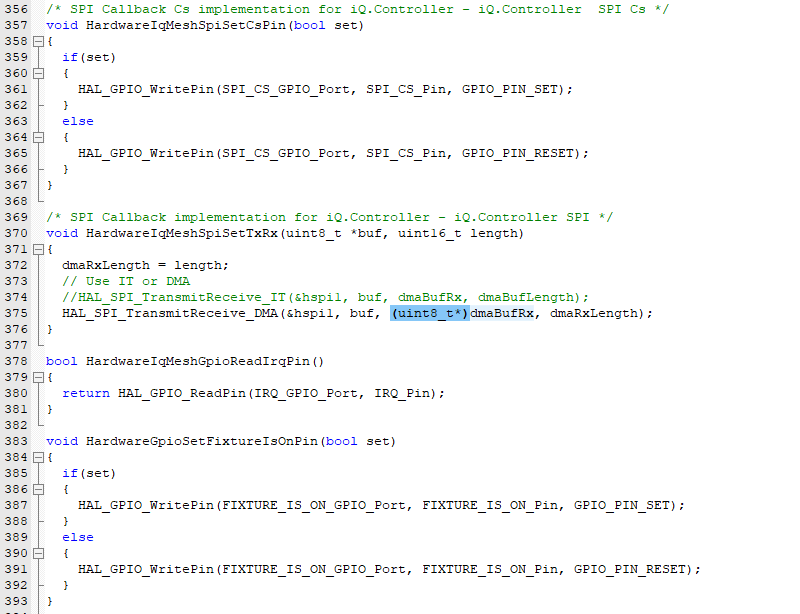
After that we will implement the other Hardware functions for the SPI CS Pin, IRQ Pin and FixtureIsOn Pin. Also the Spi transfer function HardwareIqMeshSpiSetTxRx via DMA:
Also for the other functions. The Led is just optional to know the state.
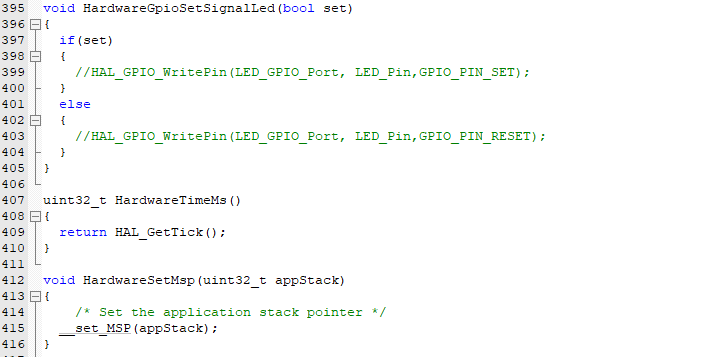
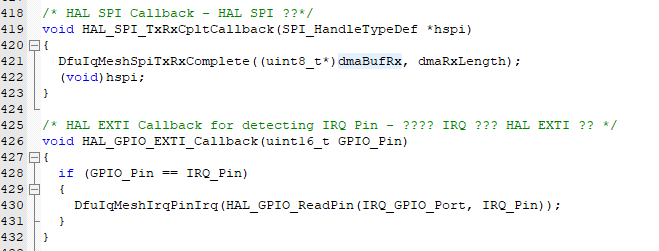
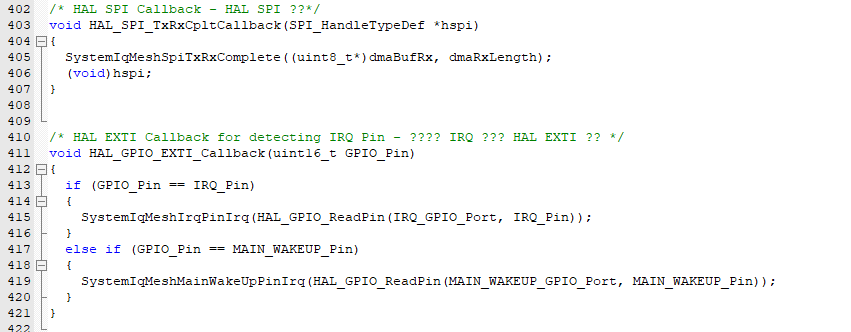
We will also need the necessary callbacks for complete SPI Transfer and the EXTI Interupt Callback. They are already handled from the Hal Implementation. So just use the given Callbacks.
The last step is to add an optional function:

I would really recommend to implement this feature. This enables at startup of the fixture to stay in bootloader and receive data when for example a button is pressed. It can help prevent a failure if the firmware is bad!!
Application Project
In order to understand the code structure example it would be useful to take a look into the page of the example and read it:
The of the example application is as following: https://server.kk-t.eu/ExternalVision/ExampleSoftware
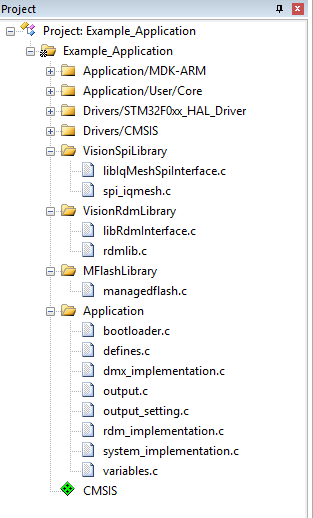
For the Application example it is nearly the same approach. We add again the necessary files for the application project:
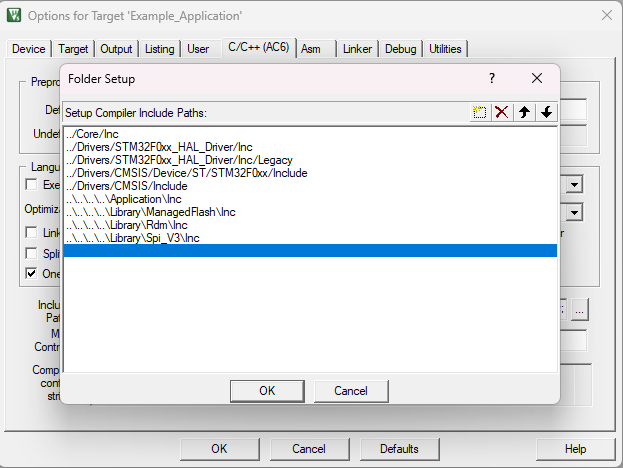
Also include the necessary header files:
Next we need to define the necessary preprocessor information for the libraries. This defines are hardware dependent.
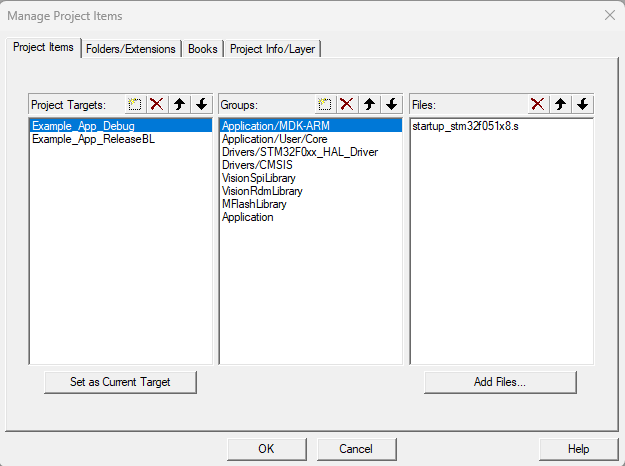
We will make the project as a debug version without a bootloader and as a release version which works together with a bootloader. Therefore we create Target „Debug“ and a Target „ReleaseBL“.
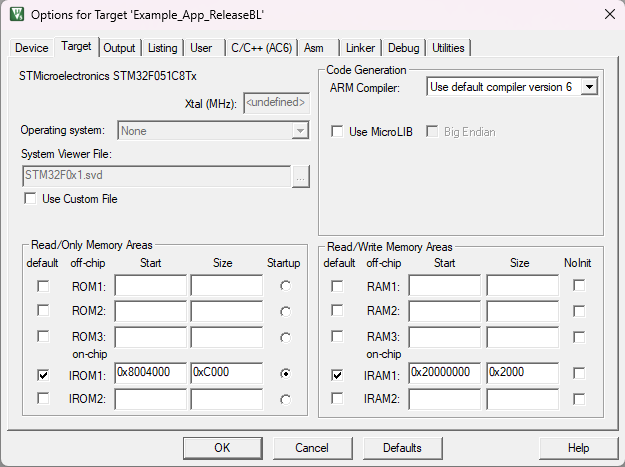
Then we have to define the flash startaddress for the application designed for the bootloader and adapt the length of the flash:
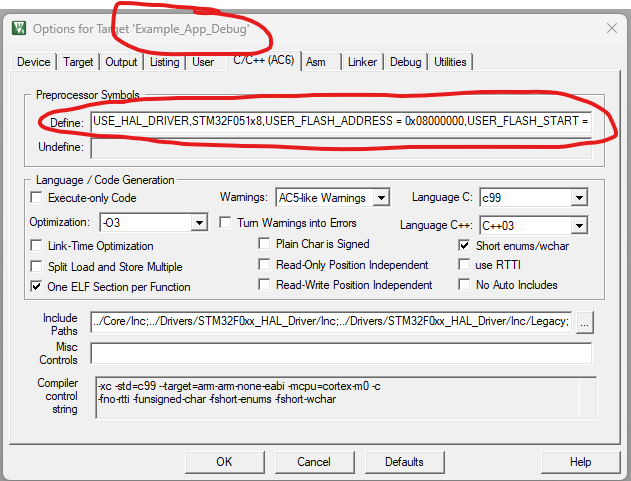
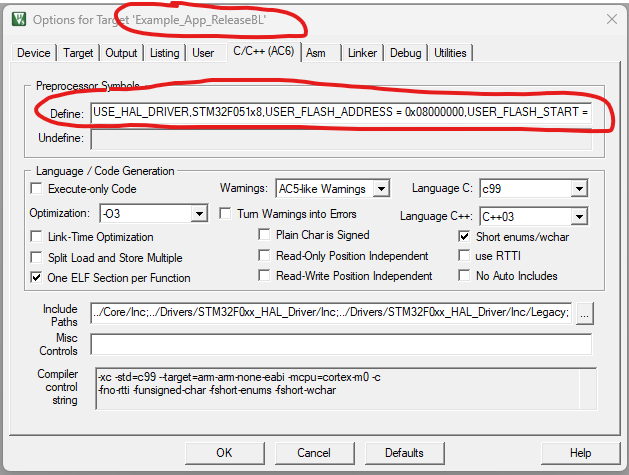
Now we need the following preprocessor defines that the libraries can work.
| USER_FLASH_ADDRESS | Start of the Flash |
| USER_FLASH_START | Start of the Flash where the settings will be saved. Address after the application |
| USER_FLASH_SIZE | Start of the Flash where the settings will be saved. |
| USER_FLASH_PAGE_SIZE | Size of the flash pages. |
| USER_STORAGEOBJECTS | Count of the storage objects the user can save using the managed flash library. |
| USER_FLASH_BYTEALIGNMENT | Flash Write Operation Alignment in Bytes |
| USER_FLASH_ADDRESS_CONFIG (Release Only) | Flash Address where the Application information from the bootloader will be saved |
| USER_FLASH_ADDRESS_APP (Release Only) | Flash Address where the Application starts |
For the used example this values are used.
#DEBUG
DEBUG
USER_FLASH_ADDRESS = 0x08000000
USER_FLASH_START = 0x0800E400
USER_FLASH_SIZE = 0x1C00
USER_FLASH_PAGE_SIZE = 0x400
USER_STORAGEOBJECTS = 7
USER_FLASH_BYTEALIGNMENT = 2


#RELEASE_BOOTLOADER
RELEASEBL
USER_FLASH_ADDRESS = 0x08000000
USER_FLASH_START = 0x0800E400
USER_FLASH_SIZE = 0x1C00
USER_FLASH_PAGE_SIZE = 0x400
USER_STORAGEOBJECTS = 7
USER_FLASH_BYTEALIGNMENT = 2
USER_FLASH_PAGE_CONFIG = 16
USER_FLASH_ADDRESS_APP = 0x08004400
USER_FLASH_ADDRESS_CONFIG = 0x08004000
Keil does not have a good preprocessor handling so you have to copy this values into the following textbox using comma seperation:
Next we add the necessary includes into the main.c

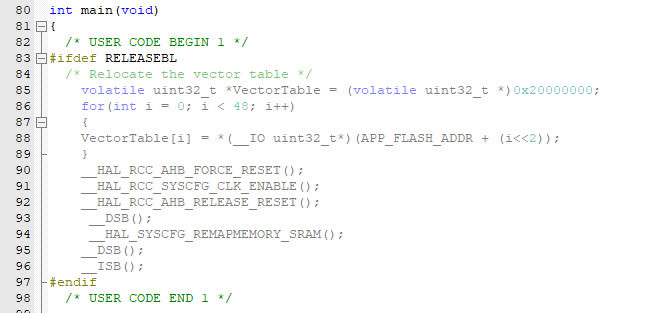
At startup when bootloader is in use make sure to reallocate the vector table and reset neces
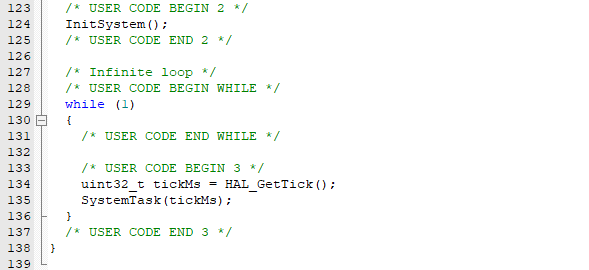
After initialization of the peripherals initialize the system. This is used as an example system. And call the SystemTask using the Timestamp in milliseconds.
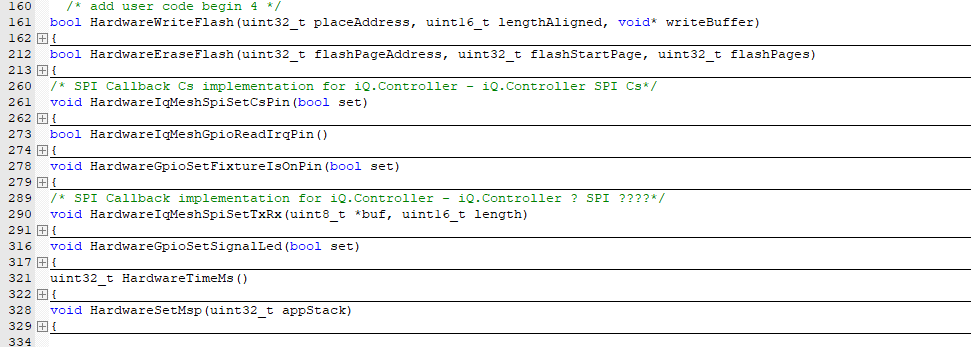
Next we add nearly the same Hardware functions as for the Bootloader. Same behavior but we will have to link some functions using the system_implementation.h.
Functions which stay the same:
The callbacks we have to modify and call the functions from the system_implementation instead of the DFU:
Also we need to add some more. For the bootloader implementation:

For the system Implementation we need also the following implementations:
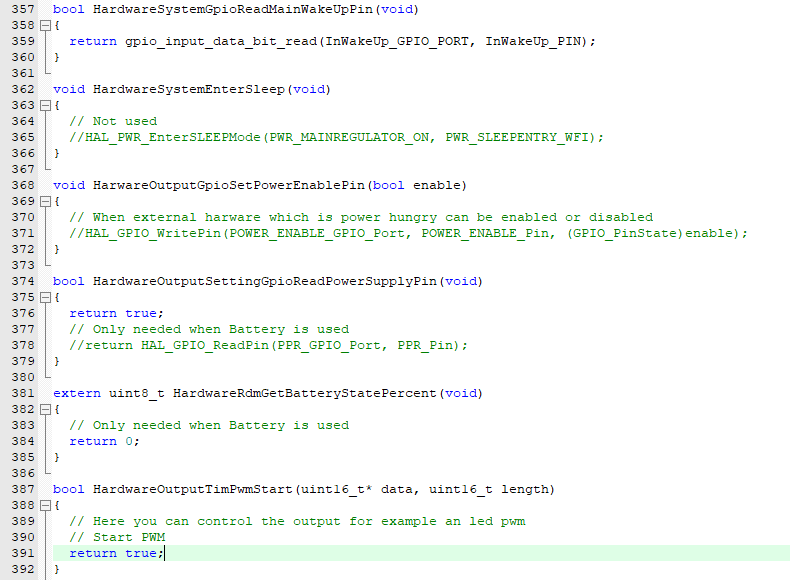
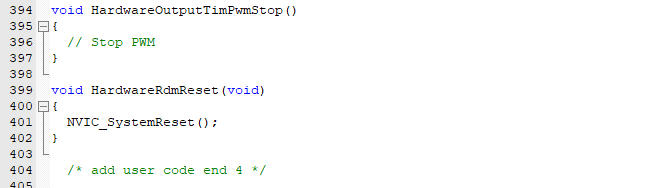
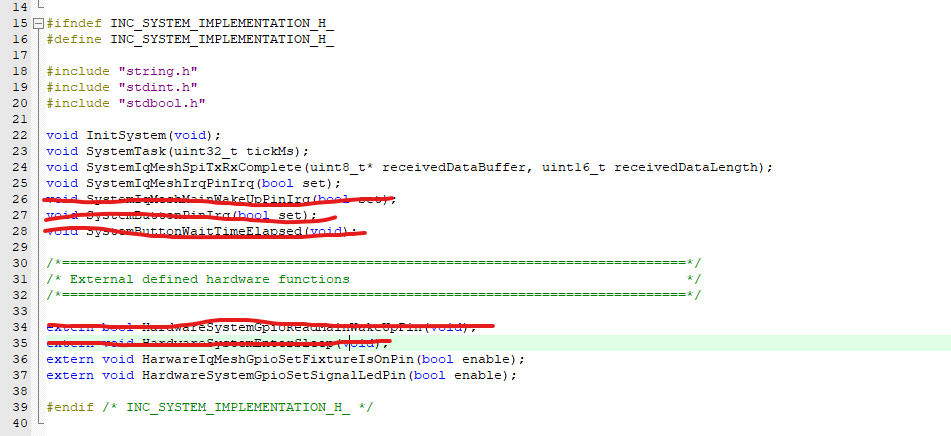
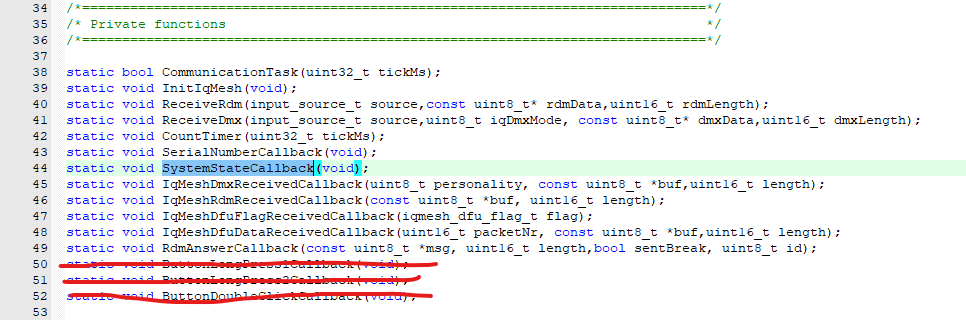
Now we have to modify the example system depending on our needs. The example contains also a button interface to turn on and more. That is not needed. We will remove the unnecessary code. Starting in the system_implementation.h and system_implementation.c file:
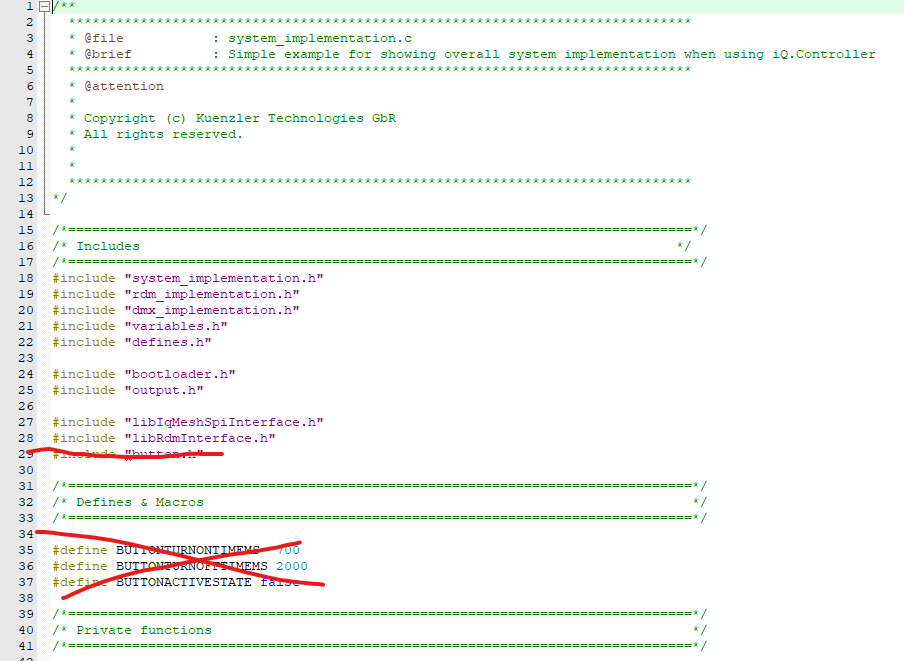
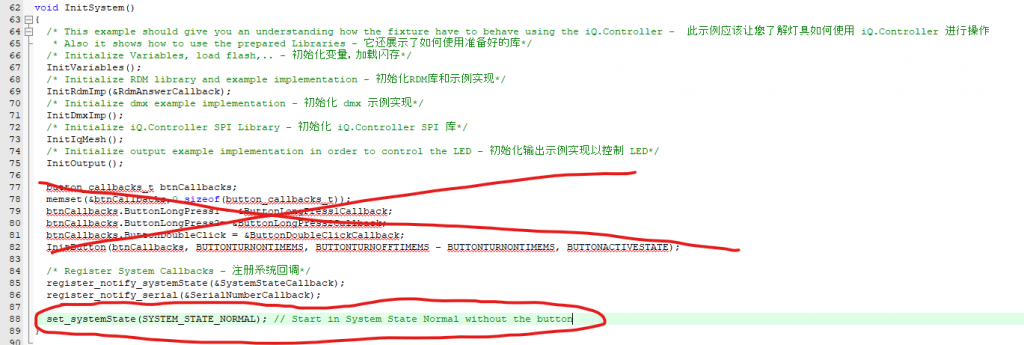
Remove the button and start immediately in system state normal:
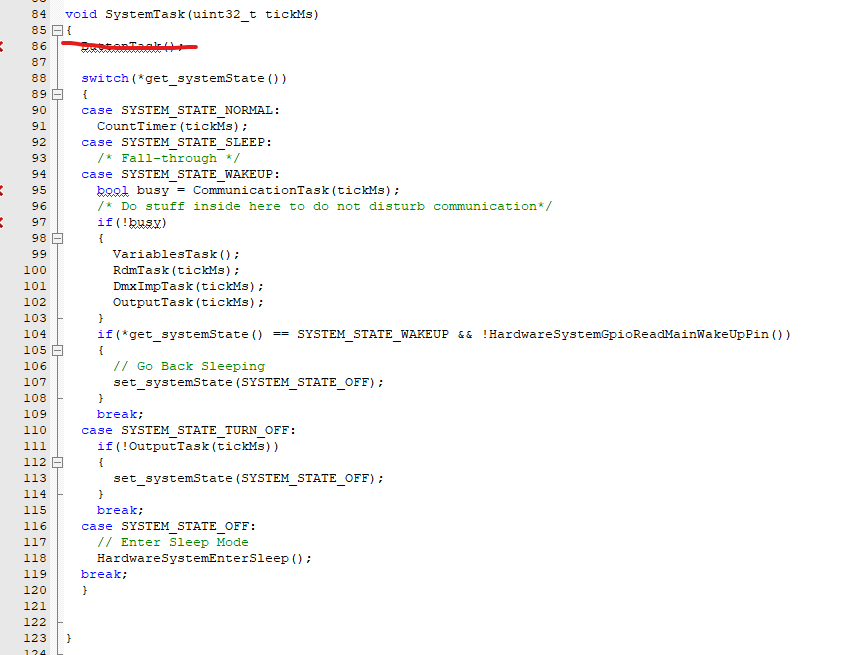
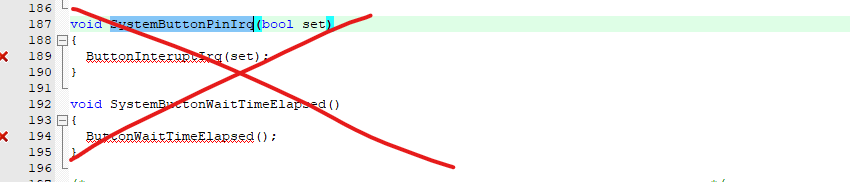
Modify the value of the iqMesh init function depending on your needs. It is the value of the dmx footprint you use for APP Control. Mostly the APP wants to have full control over all leds and in 16 bit. So it is mostly the longest dmx footprint. The value you put in can be longer but should not be less.

Remove other button functions:
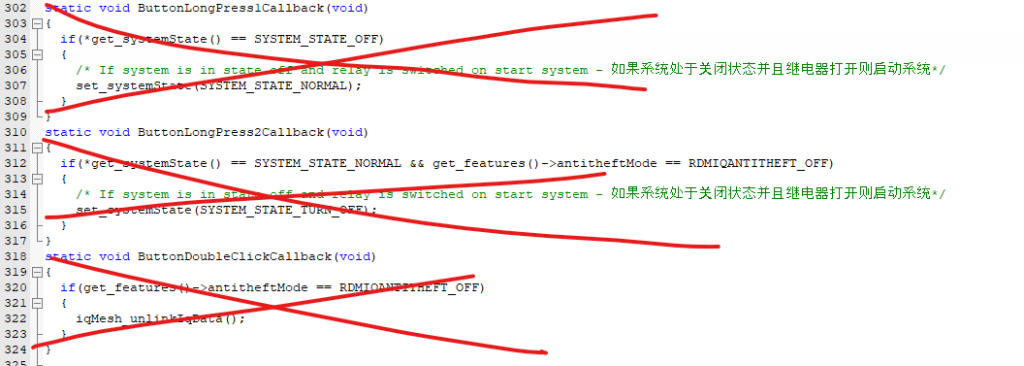
So now the project should build successfully without error. Otherwise you have to check. Also please contact us for support. We are happy to assist you.
Next would be to change the defines depending on your needs. You can find them in the defines.c and defines.h files:
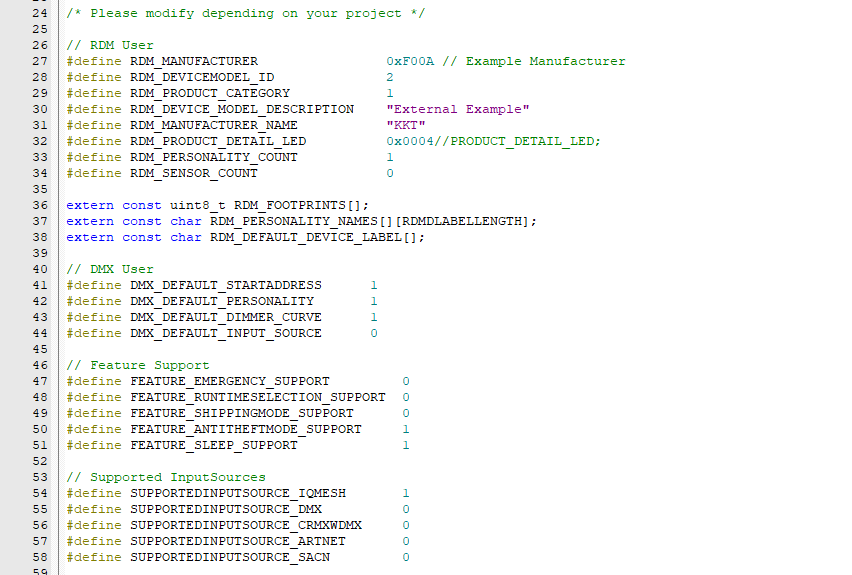

Next you should modify the dmx_implementation.c to match your dmx implementation for the product.
In the rdm_Implementation.c you have to adapt the rdm commands to your needs. After that you could try the example out.
Therefore please follow the steps on this page:
https://server.kk-t.eu/ExternalVision/TestPreparations
The full Project of the Example can be downloaded here:
https://kk-t.com/wp-content/uploads/2025/12/VisionExternalExample_CustomProject_2025_12_31.zip
If you have issues getting the communication between your IC and the Vision IC to work please follow the step by step debug instructions:
https://kk-t.com/wp-content/uploads/2025/08/iqMeshIntegration_DebugGuide.pdf