The Vision Controller is flashed with bootloader firmware first. You can download the newest bootloader here. Make sure you choose the correct bootloader for your application (If you have a preconfigured fixture from us or the bootloader is already flashed you can skip this step):
- Fanstel BT840 (nrf52840) :
https://server.kk-t.eu/api/v1/share/File?file=IQCONTROLLER_VISION_CORE_FBT840_BL1_2_1_SD_7_3_0.hex - Wuerth Orphelia III /Proteus III (nrf52840) :
https://server.kk-t.eu/api/v1/share/File?file=IQCONTROLLER_VISION_CORE_WOIII_BL1_2_1_SD_7_3_0.hex - Fanstel BC833 (nrf52833) :
https://server.kk-t.eu/api/v1/share/File?file=IQCONTROLLER_VISION_CORE_FBC833_BL1_2_1_SD_7_3_0.hex - Abluetech PTR9818 (nrf52840) :
https://server.kk-t.eu/api/v1/share/File?file=IQCONTROLLER_VISION_CORE_FBT840_BL1_2_1_SD_7_3_0.hex - Abluetech PTR9813/PTR9813+(nrf52840) :
https://server.kk-t.eu/api/v1/share/File?file=IQCONTROLLER_VISION_CORE_FBC833_BL1_2_1_SD_7_3_0.hex
Scan for your fixture in the Vision Control App:
- Open the Vision Control App and make sure you have a working internet connection
- Login with an already existing account or register a new account
- A prepare wizard will open the first time you use the app. Enable your Bluetooth & Location services there. If you accept Bluetooth & Location services it should work out of the box. If an error occurs please inform yourself how to do this on your specific platform. A list of supported and tested devices can be found here: https://iqservice.glp.de/index/SupportedDevices
- Your app will open the Discover page:
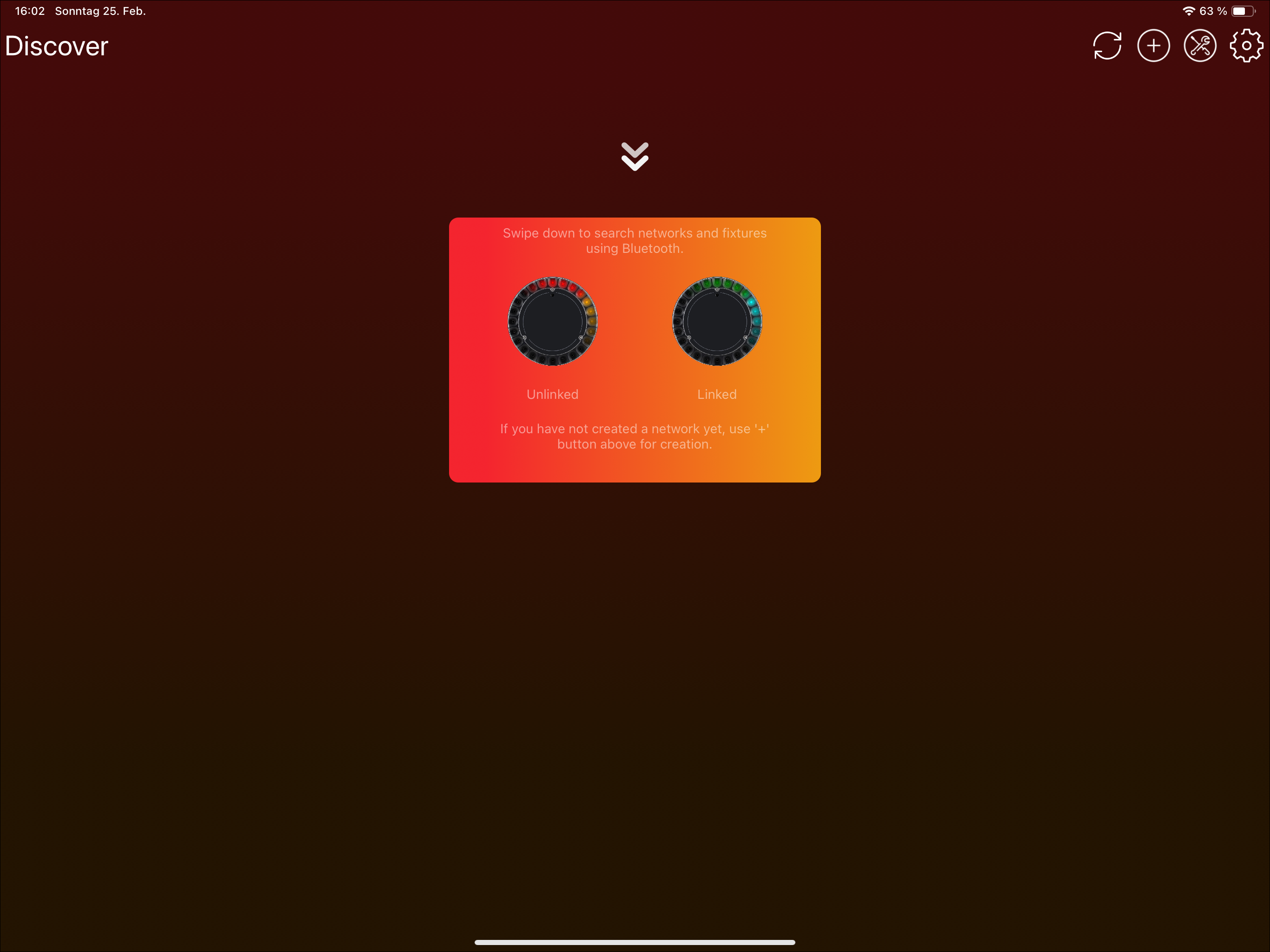
- Trigger a Bluetooth scan. A Bluetooth scan can be triggered in two ways depending on your device:
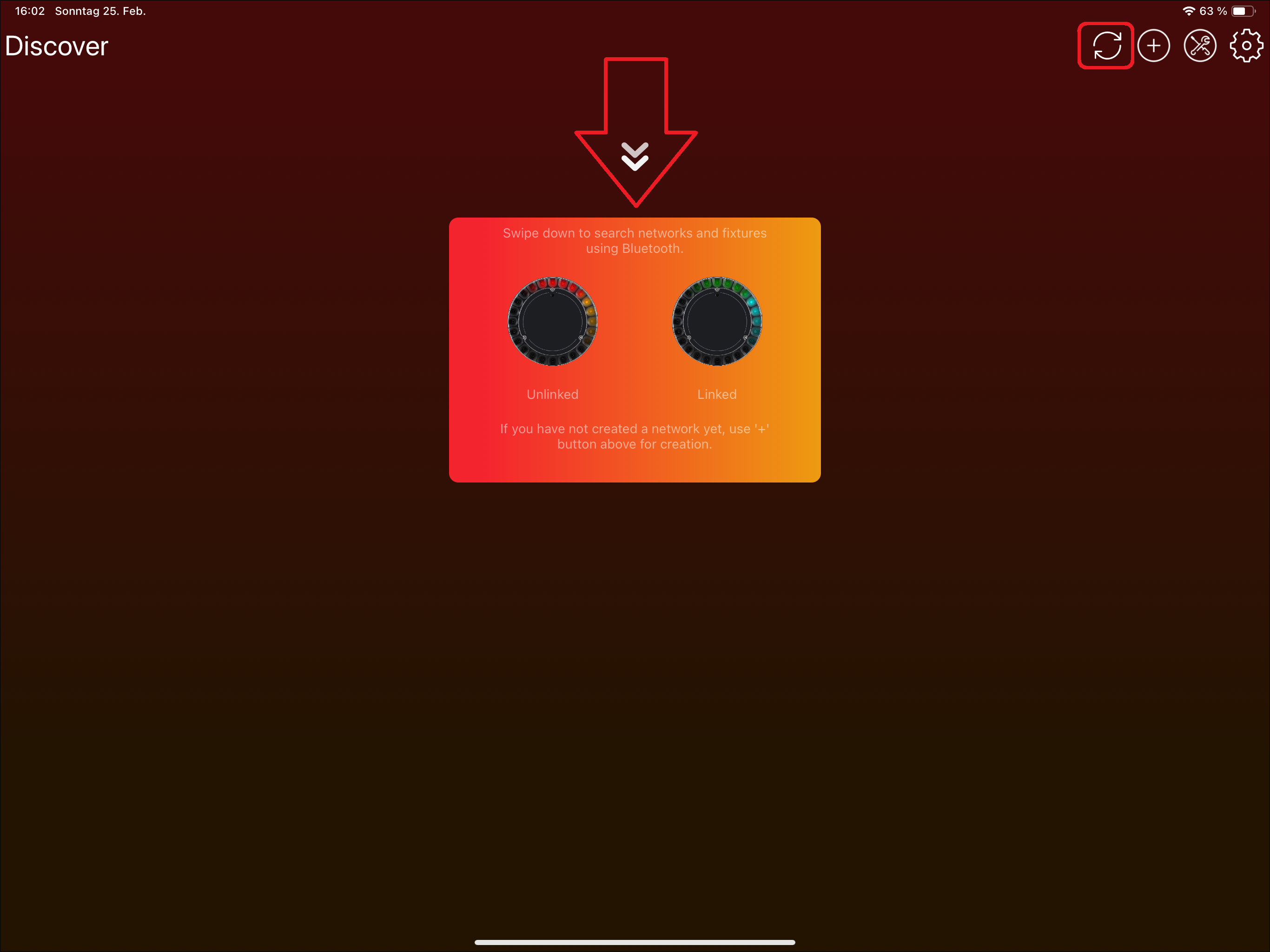
- Tablets: Use either the refresh icon or swipe down:


- Windows: Using the refresh Icon in the top:
- Phones: Swipe down as the icon indicates:
- Tablets: Use either the refresh icon or swipe down:
- Now your device searches for available fixtures using Bluetooth
If you have flashed the bootloader or the bootloader was already flashed on the VISION module then you can install the newest VISION firmware using the Vision Control app. (If you have a preconfigured fixture from us you can skip this step):
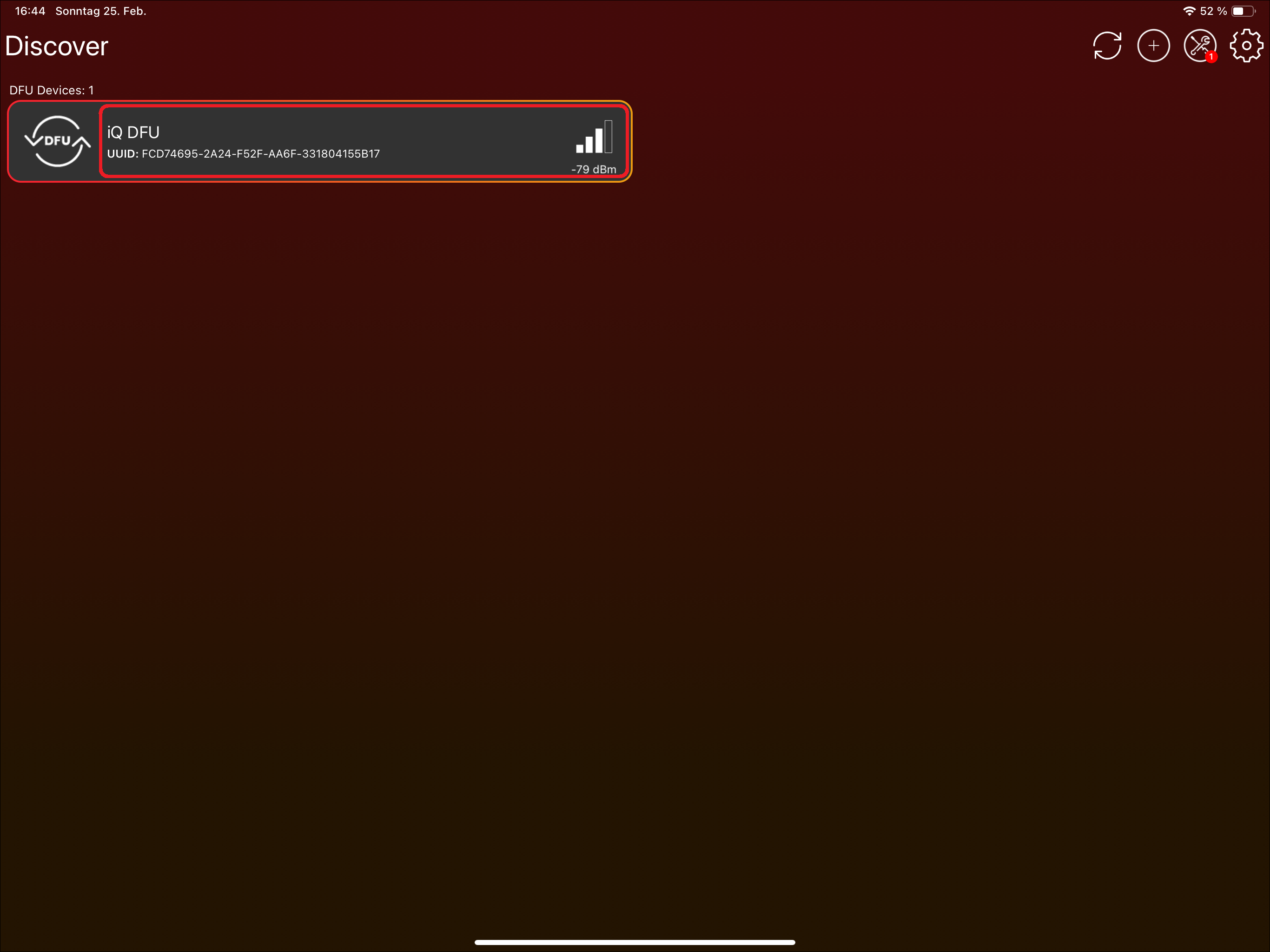
- Press on the “iQ.DFU“ fixture. Do not click on the DFU Icon, there you can select and deselect the fixture but we do not need this function currently.
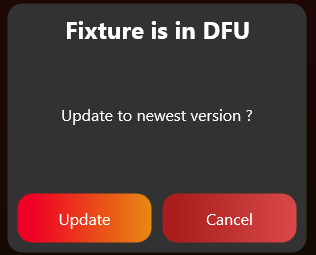
- The application will ask you to update the VISION firmware. You can update to the newest available by clicking „Update“: