This section outlines the steps to generate a production-ready flash file for your custom hardware implementation. This file integrates the application firmware, bootloader, and necessary configurations, ensuring a streamlined deployment process.
In Production you may not want to flash only the bootloader and after that do a DFU Upgrade to get the application onto the fixture. It makes more sense to flash both the bootloader and the application. You cannot just simple merge the 2 files because you still need the application header which includes the length and the necessary CRC Check.
In order to generate a merged file including boot-loader, Application and application header we provide you a Tool in the Vision Control App for Windows.
First open the Vision App on Windows. If you are not familiar with this step please check out the following site first:
https://server.kk-t.eu/ExternalVision/TestPreparations
Set the application into “Test Mode“ using the following procedure. This allows to use and see development fixtures which are not registered:
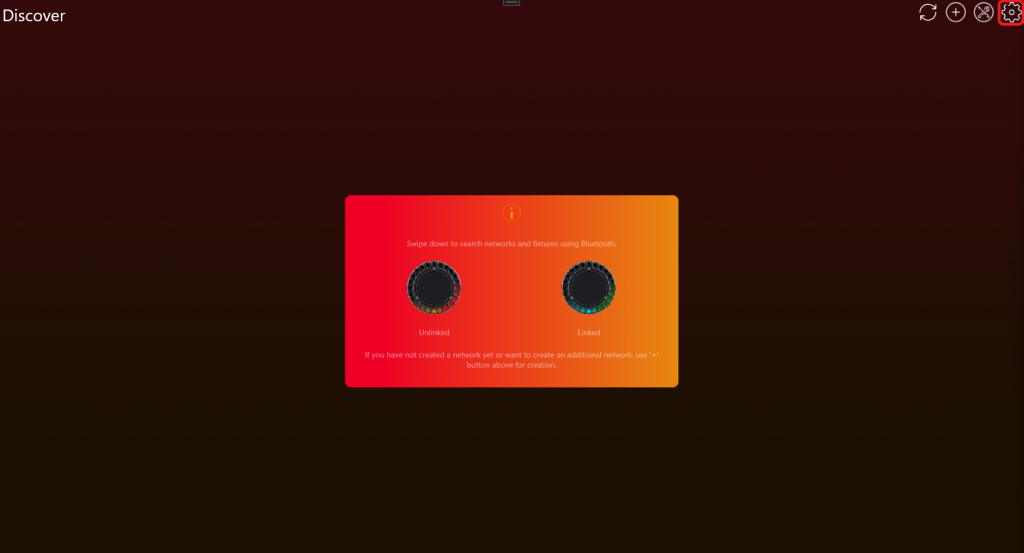
- Go to „Settings“ by clicking on the gear in the top:
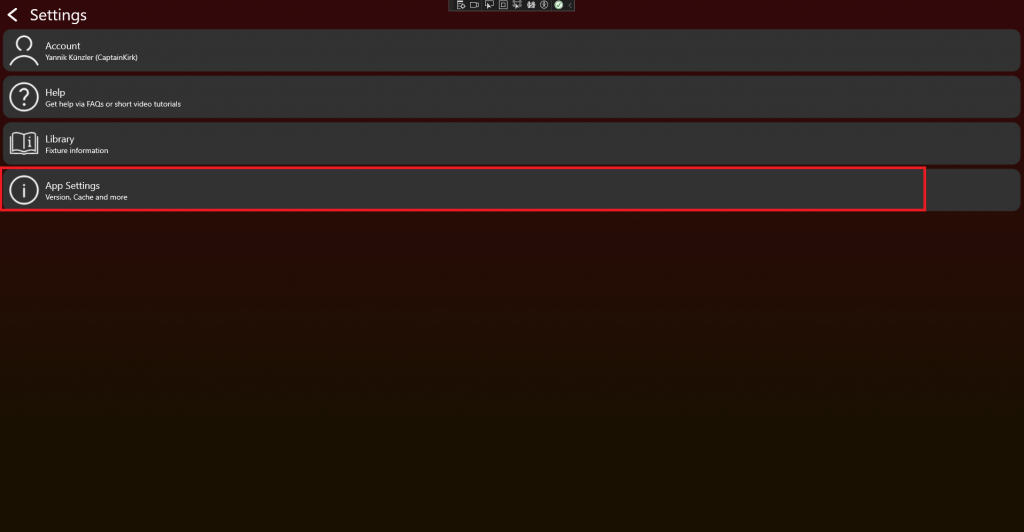
- Click on App Settings:
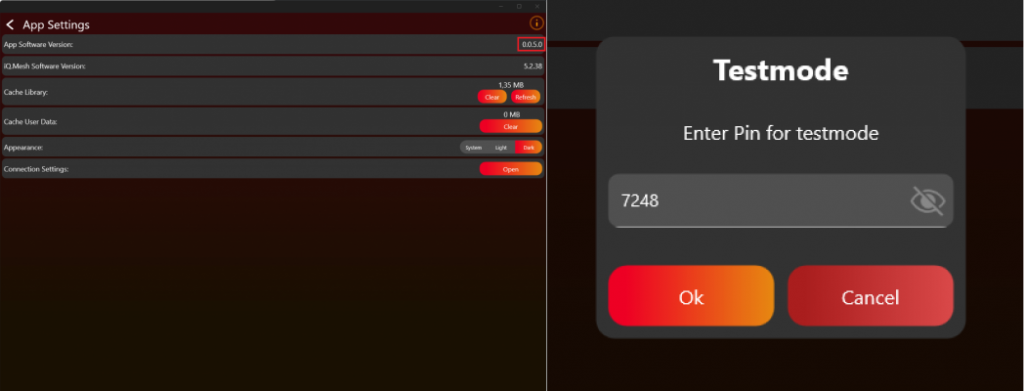
- Tab on the App Software Version label (0.0.5.0) two times. After that a prompt shows up. Type in the PIN “7248“. Then the Test Mode will be activated.
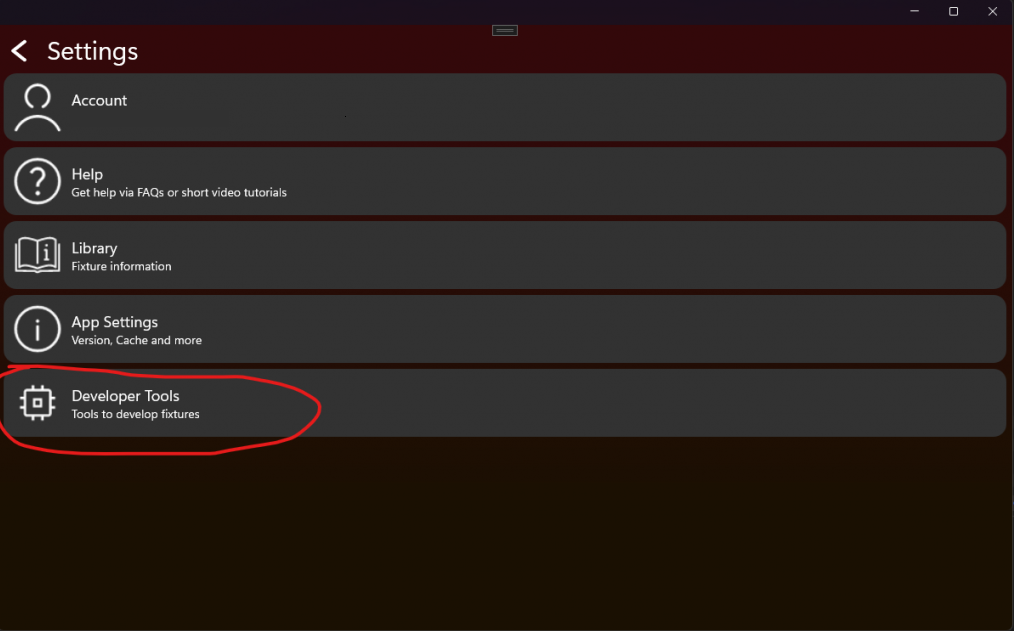
Now you have got the necessary functions available in the App. Go again to the settings tab.
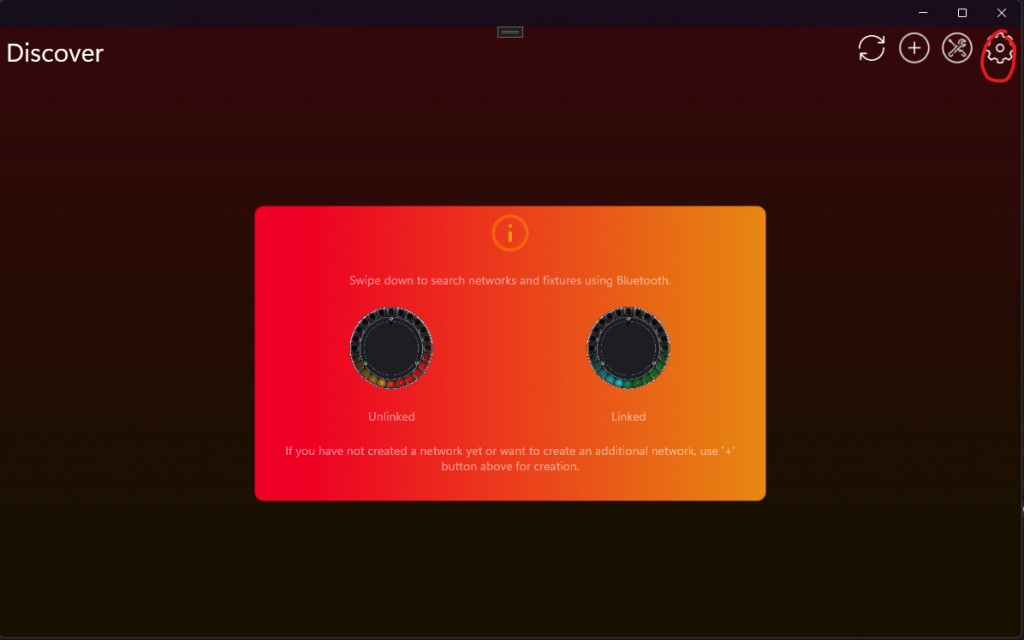
Now Developer Tools should be visible.
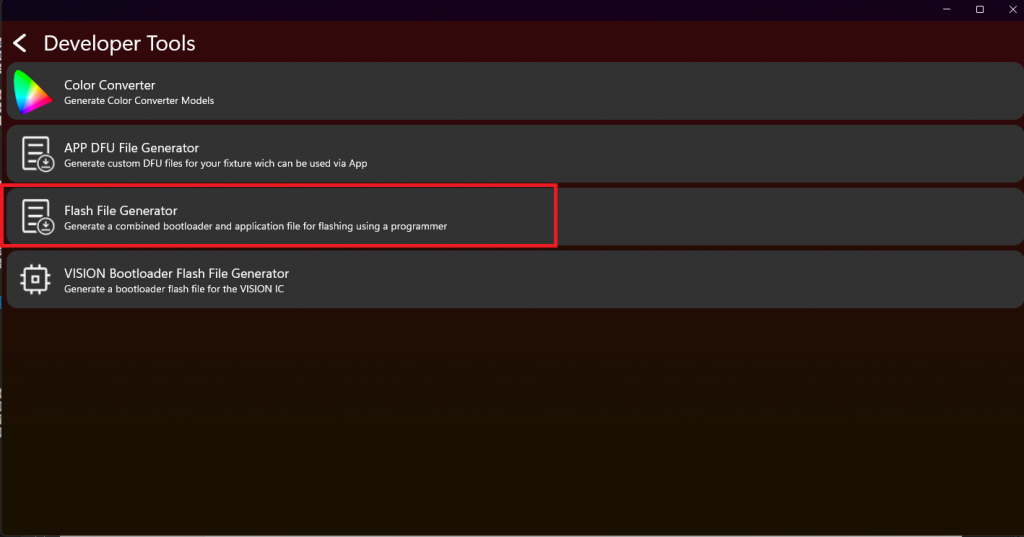
Click then on Flash File Generator:
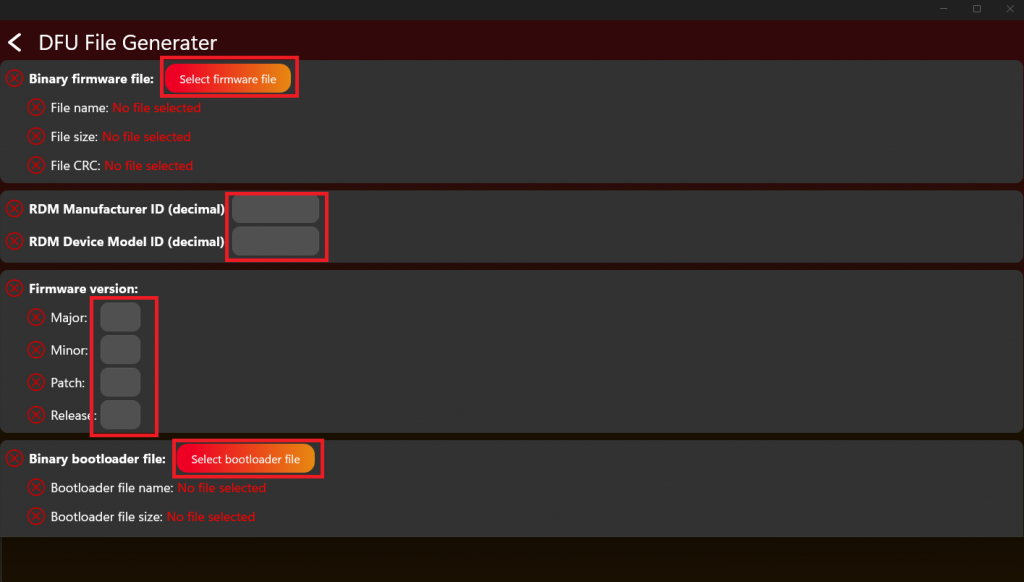
Select the binary application file (.bin). Select the correct RDM Manufacturer and ID (in order to pass the signature). Fill in the Firmware Version of the application. Select the binary bootloader file:
Next scroll down and fill in the offset of each file. You must not use the absolute address. Use the relative address from the first file which is oviously the boot loader. Keep this at 0. Next would be to enter the offset Config address. This is in the custom example both 0x4000 which should be typed in in decimal like 16384. The Offset of the application is either 0x4400 for Stm32 Example or 0x4800 for the Artery Example. Both should be typed in in decimal which is 17408 or 18432 respectively. Then at last put in the firmware Version of the boot loader.
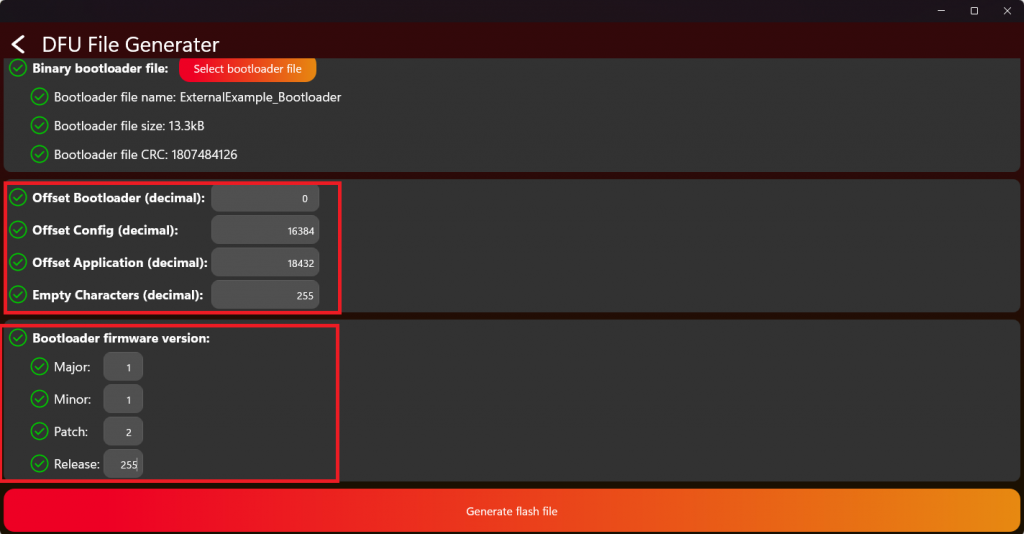
Then generate the merged file using the generate flash file button and your are finished.