- Visit the web server at server.kk-t.eu.
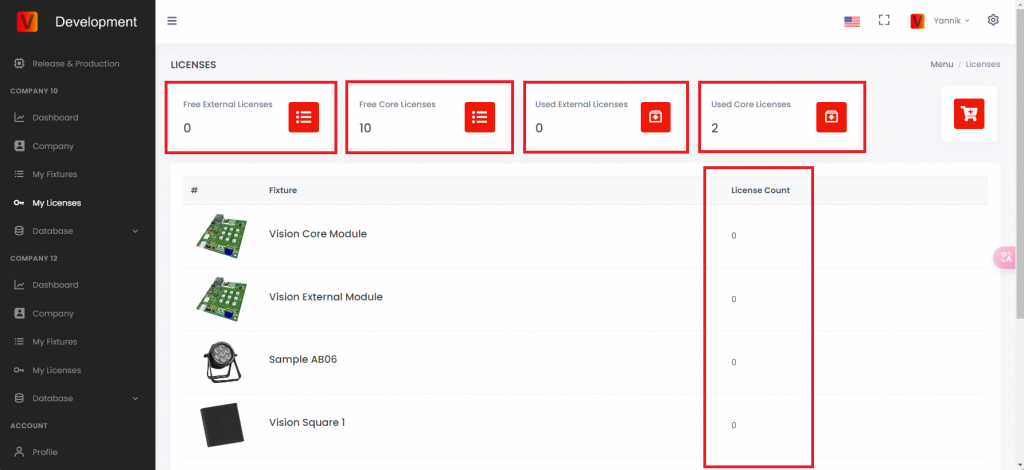
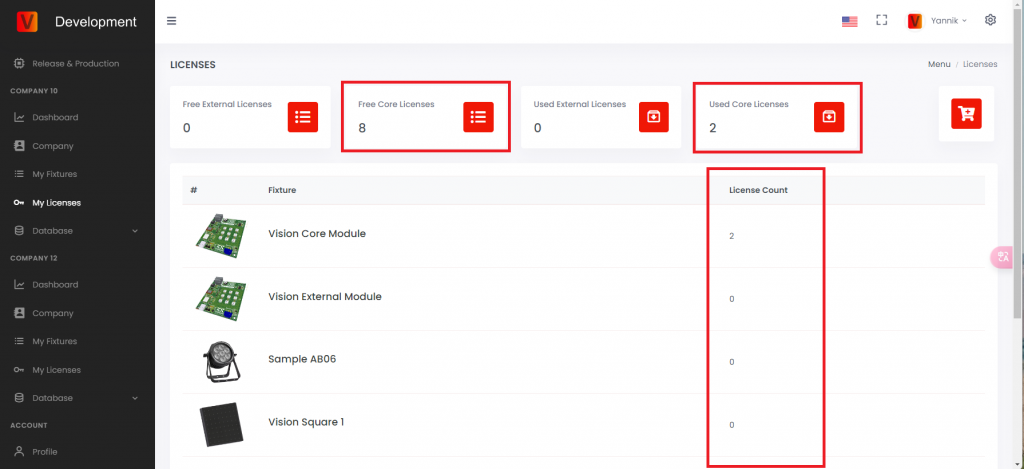
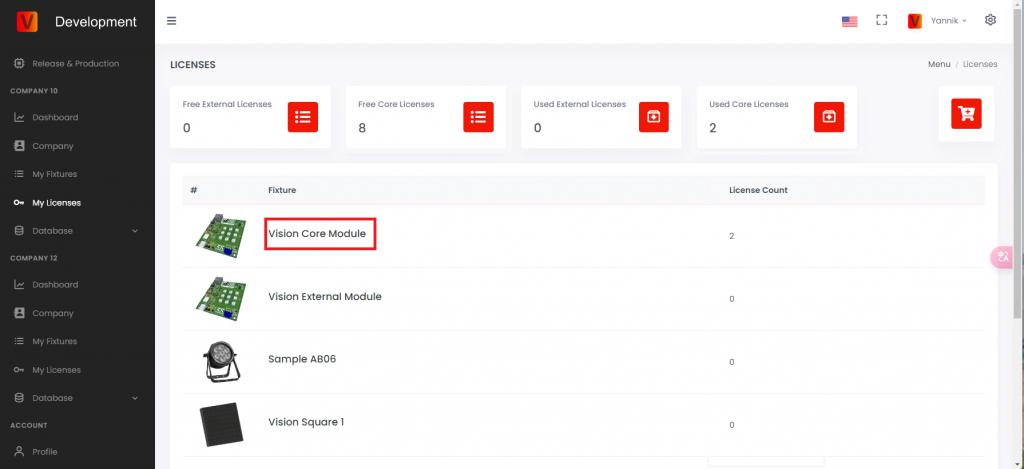
- Navigate to „My Licenses“ within your company profile. Here, you can view:
- Free External Licenses: Purchased but not yet used external licenses.
- Free Core Licenses: Purchased but not yet used core licenses. This number needs to be greater than 0 to license a new fixture with anCore Module
- Used External Licenses: External licenses that have been activated.
- Used Core Licenses: Core licenses that have been activated.
- License Count: Displays the number of licenses used for this type of fixture.
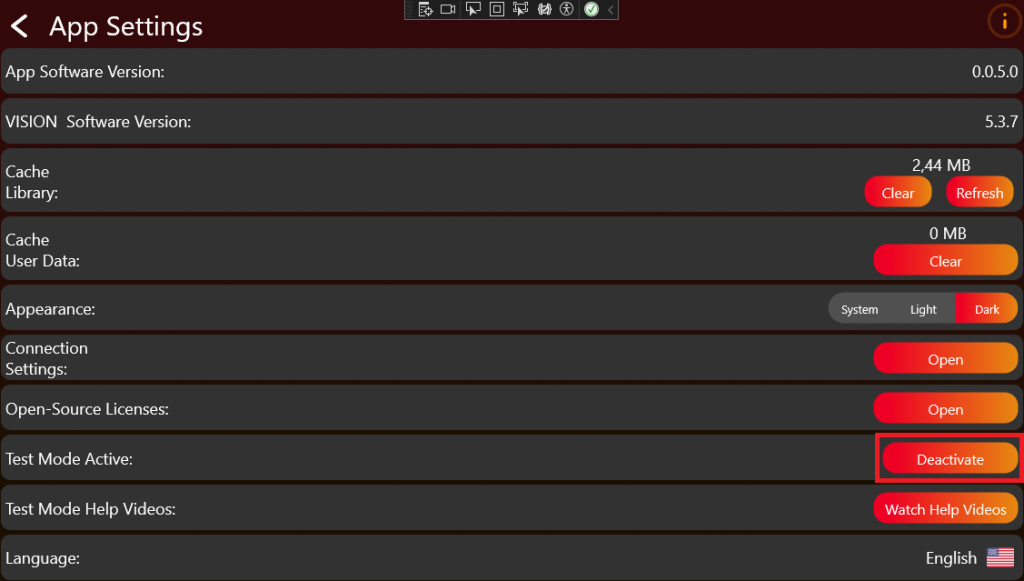
- Check if Test Mode is deactivated. If the Test Mode is aktive deactivate it:
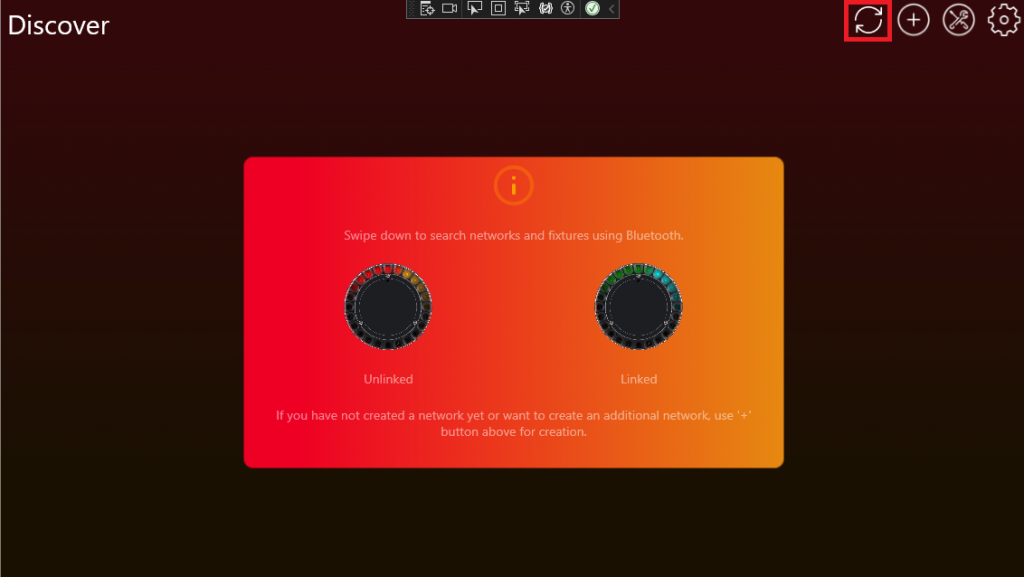
- On the Discover page, scan for fixtures
- An orange warning sign next to a fixture indicates an issue.
- Clicking on this fixture with an orange warning will result in an error due to the absence of a license. This step is not part of the licensing process, it simply demonstrates what occurs with unlicensed fixtures.
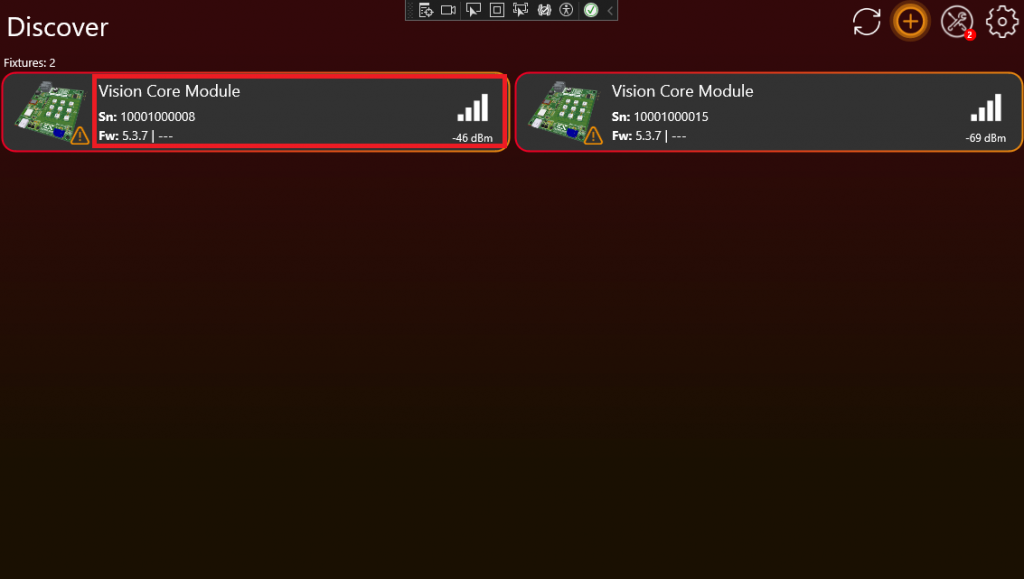
- Clicking on this fixture with an orange warning will result in an error due to the absence of a license. This step is not part of the licensing process, it simply demonstrates what occurs with unlicensed fixtures.
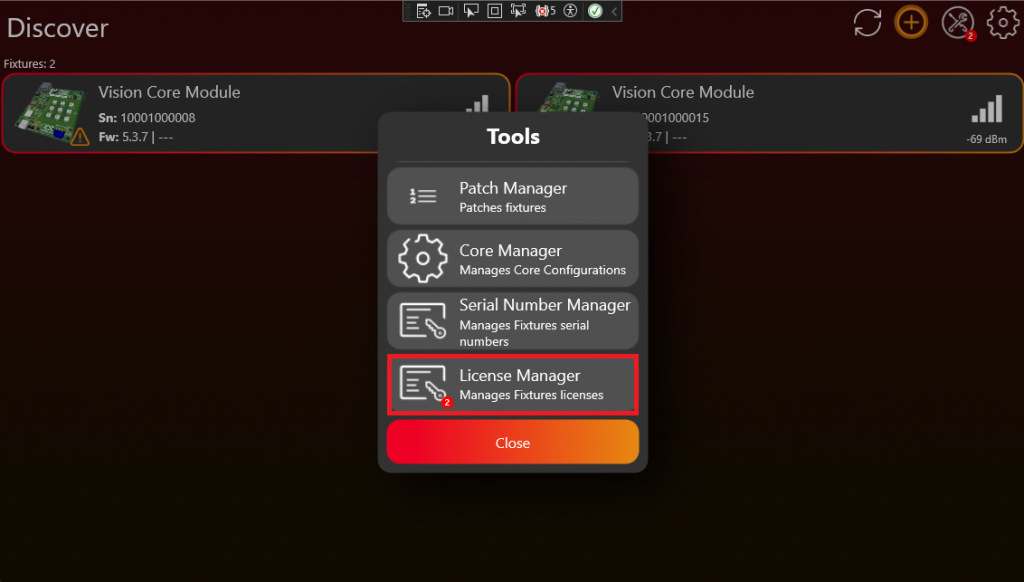
- At the top, the Tools Icon is marked with a red badge indicating an action is required. Click on the Tools Icon.
- Scroll down to see the red badge on the License Manager and click on it.
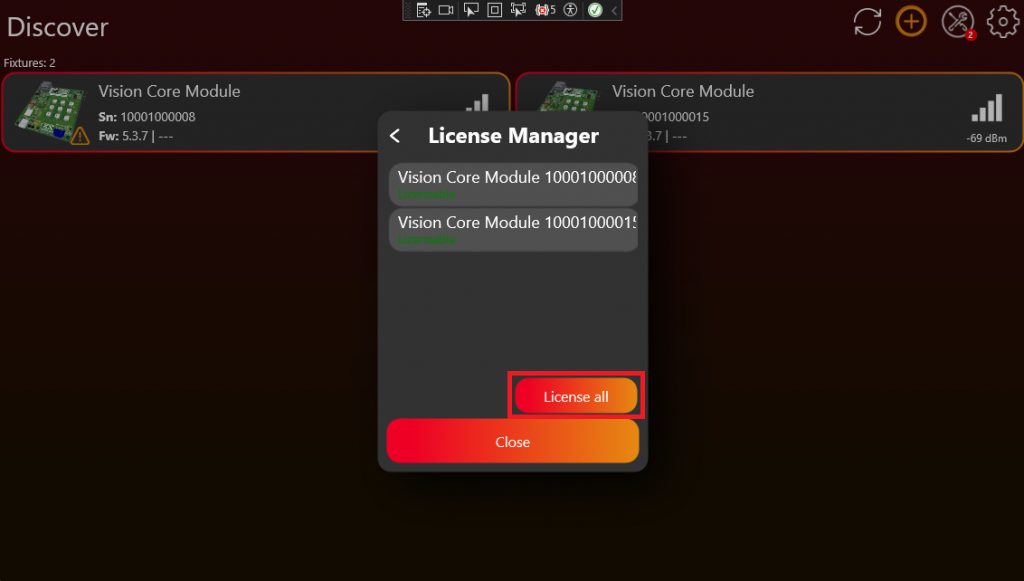
- Then you will see all fixtures without a license. Fixtures that can be licensed will have a green „Licensable“ indicator. Click „License all“ to license your fixtures
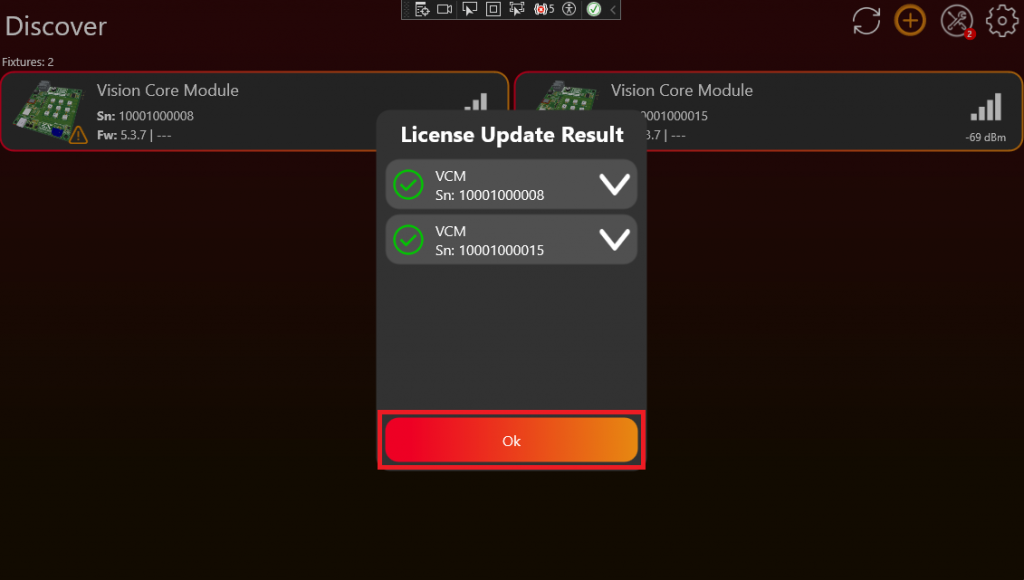
- After a successful licensing process, click „OK“ and scan again.
- The licensed fixture will no longer show an orange warning and can now be controlled by the Vision Control App.
- In the Web Server you can see that the amount of „Free Core Licenses“ was reduced by 2 and the amount of „Used External Licenses“ was increased by 2. Further you can see that the Vision Core Module has now a „Licenses Count“ of 2.
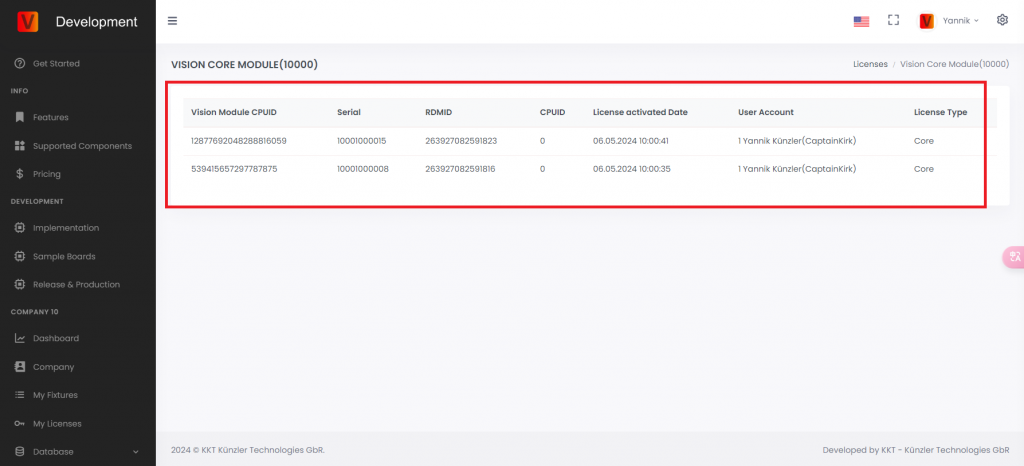
- Click on the label of the fixture to see more detailed information:
- You can see all licensed fixtures with their serial number, RDM ID and more:
Congratulations! You have successfully implemented a Vision-controllable fixture.